Configuration
1
Install and sign in
Download and install WorkBuddy from codebuddy.cn, then sign in to reach the main screen.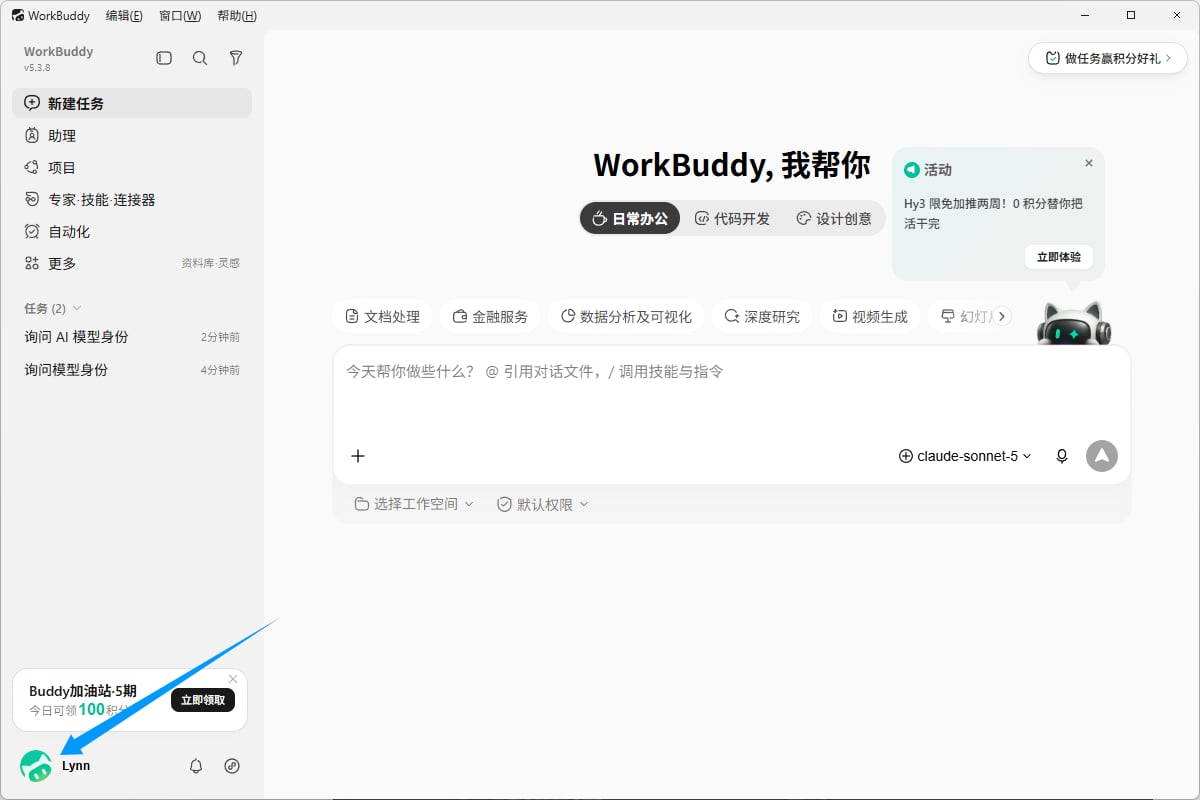
2
Open Settings
Click your avatar in the lower left and choose Settings.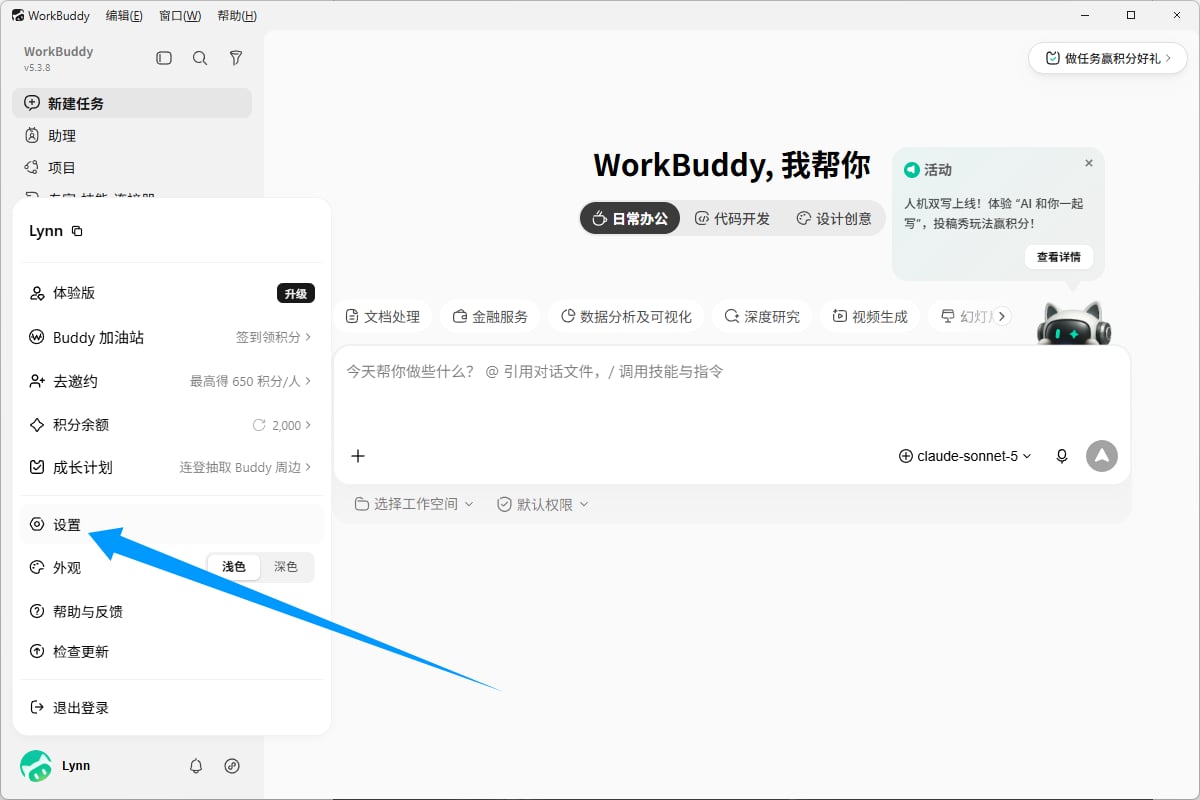
3
Add a custom model
Find the Models tab on the left and fill in: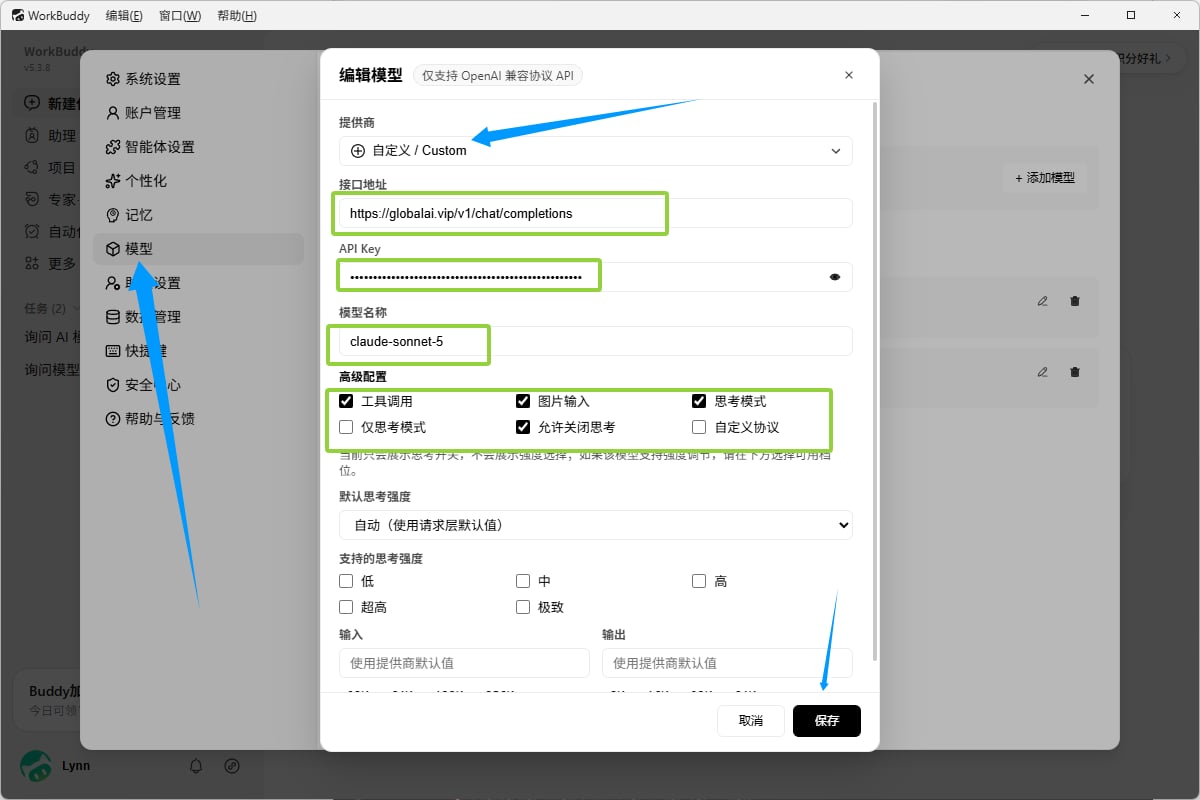
- Provider: choose Custom
- Endpoint:
https://globalai.vip/v1/chat/completions - API Key: paste your
sk-key - Model name: copy the target model ID from the Pricing page and paste it
- Advanced settings: we recommend checking Tool calls, Image input, and Thinking mode at minimum
4
Choose the model and send a message
Pick the model you just added from the selector below the input, then send a test message.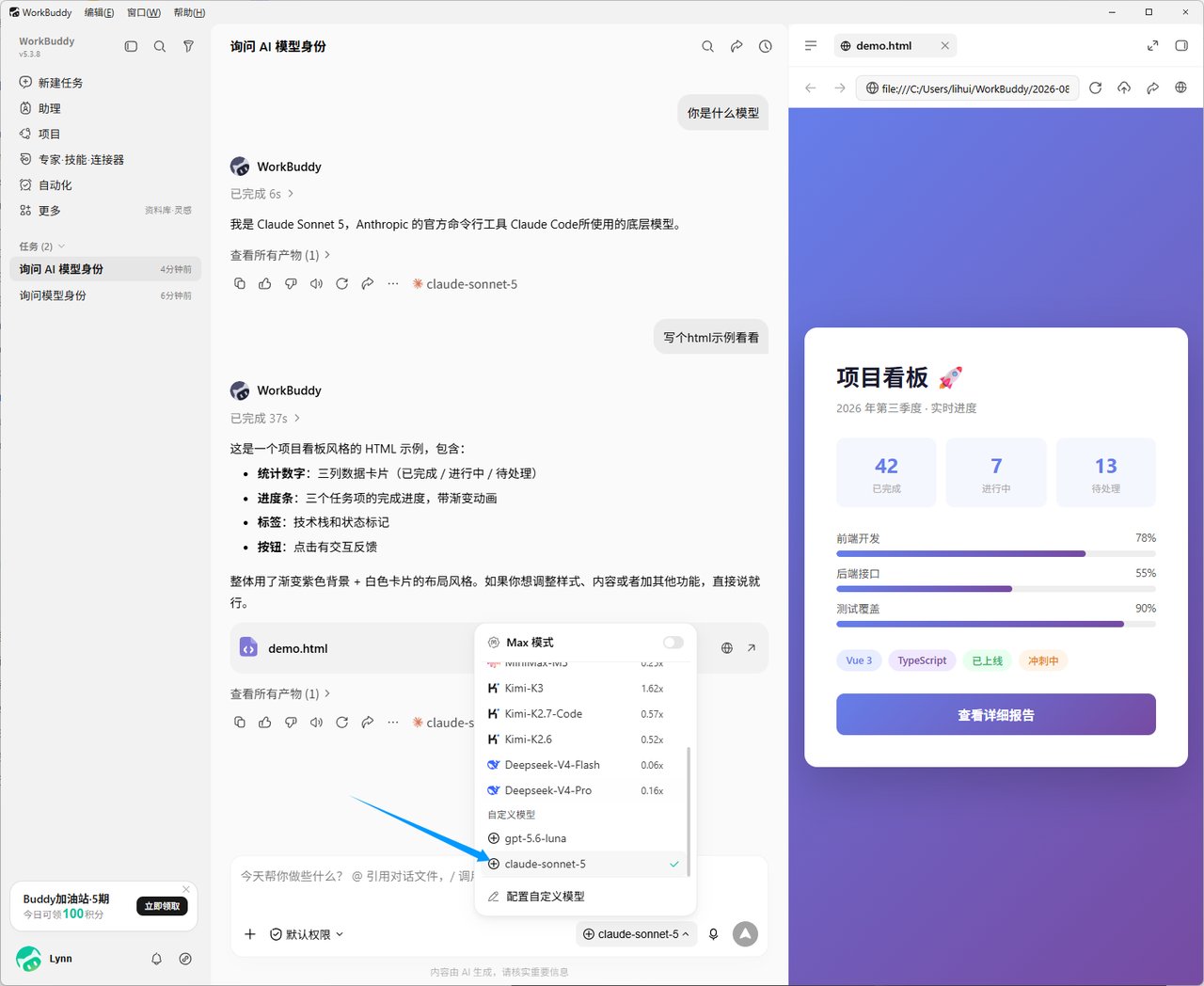
5
Verify the integration
A normal reply means the integration works. You can also check Usage logs to confirm the call was recorded.
Troubleshooting
Authentication error on call
Authentication error on call
Confirm you are using a
sk- key from Global AI and that it has not expired. Edit or regenerate at globalai.vip/keys.Model not found
Model not found
Model IDs change over time. Use the current IDs shown on globalai.vip/pricing and paste without extra whitespace.
Tool calls or image input fail
Tool calls or image input fail
Not every model fully supports tool calls, image input, and thinking mode. If you see errors, uncheck the relevant option in settings or switch to a model that supports it.