Pick one of the two methods below: CC Switch is best on the desktop with a GUI. Manual setup suits users comfortable with command line and config files.
Option 1: CC Switch (recommended)
CC Switch is a desktop tool for switching providers with one click. It supports both Claude Code and ChatGPT(Codex). Download: github.com/farion1231/cc-switch/releases. Global AI supports one-click import into CC Switch. Steps:1
Create a Codex-group key
Sign in to Global AI, open API keys in the left menu (or go directly to globalai.vip/keys), and create a key in the codex group.
2
Open the CC Switch import menu
On the row of the new key, click the … button on the far right and choose CC Switch from the dropdown.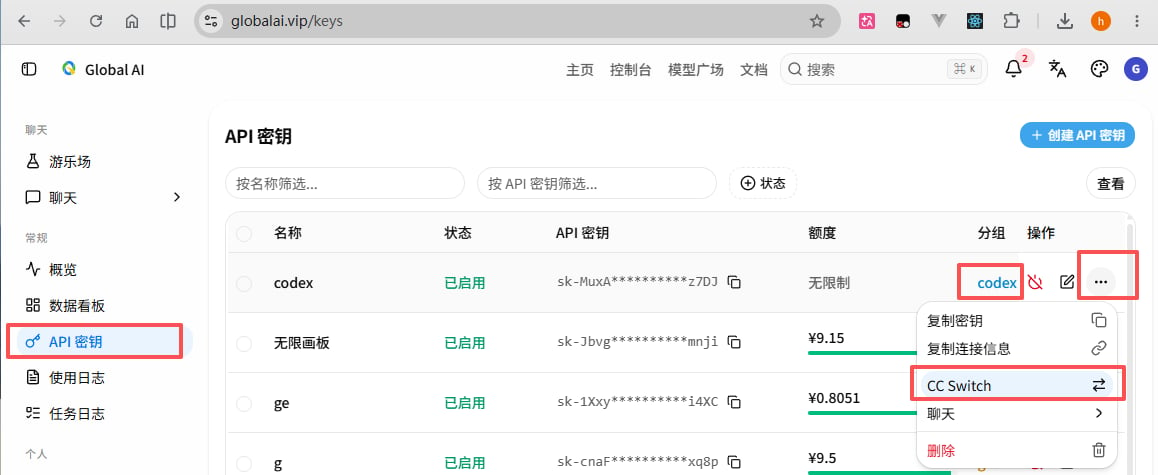
3
Fill in the import details
In the dialog: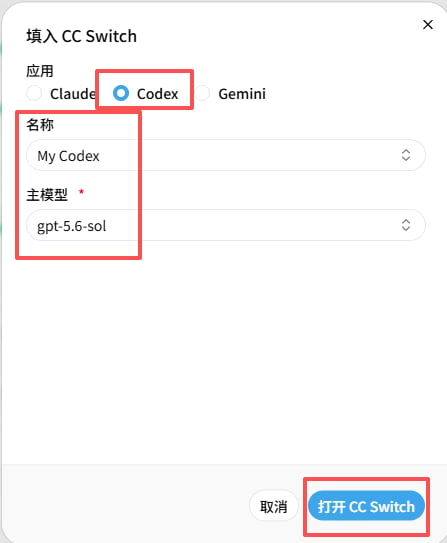
- App: choose
Codex - Name: customize as needed
- Main model: choose
gpt-5.6-sol
4
Confirm opening CC Switch
Confirm in the browser prompt to open the CC Switch application.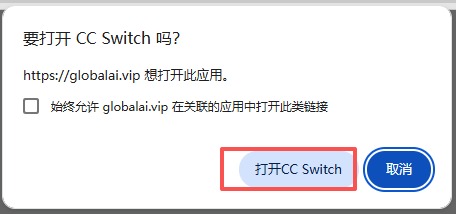
5
Import the configuration
In CC Switch, click Import and wait for the success message.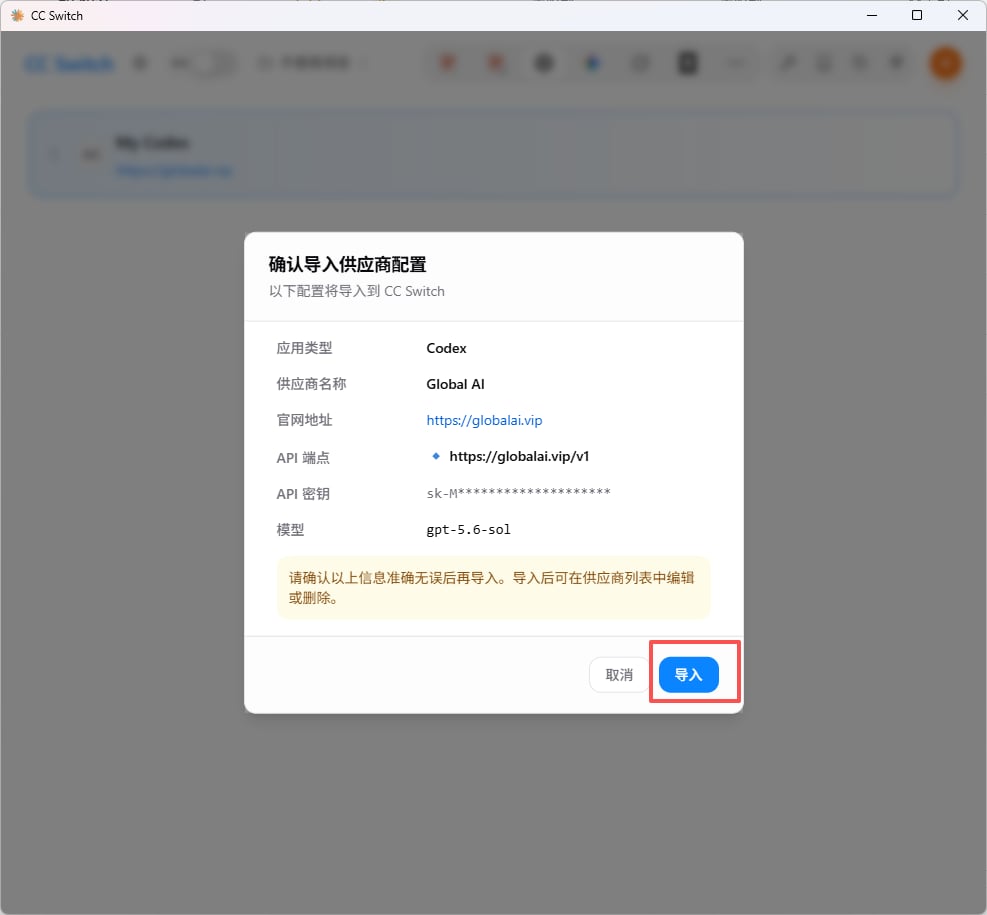
6
Send a test message
After restarting the ChatGPT (Codex) client,send a test message.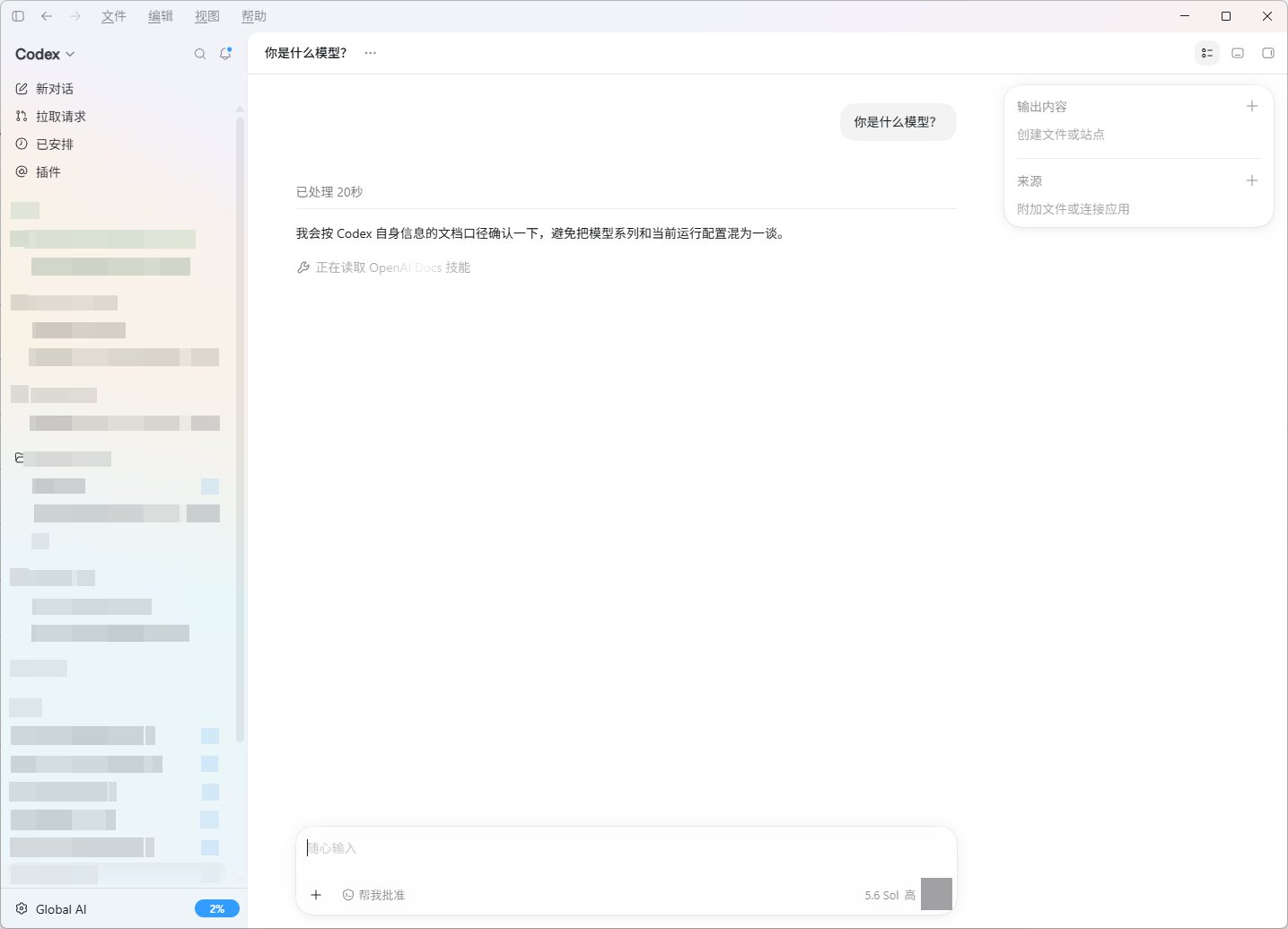
7
Verify the integration
Open Usage logs. If a call appears at the same time as your test, the integration works.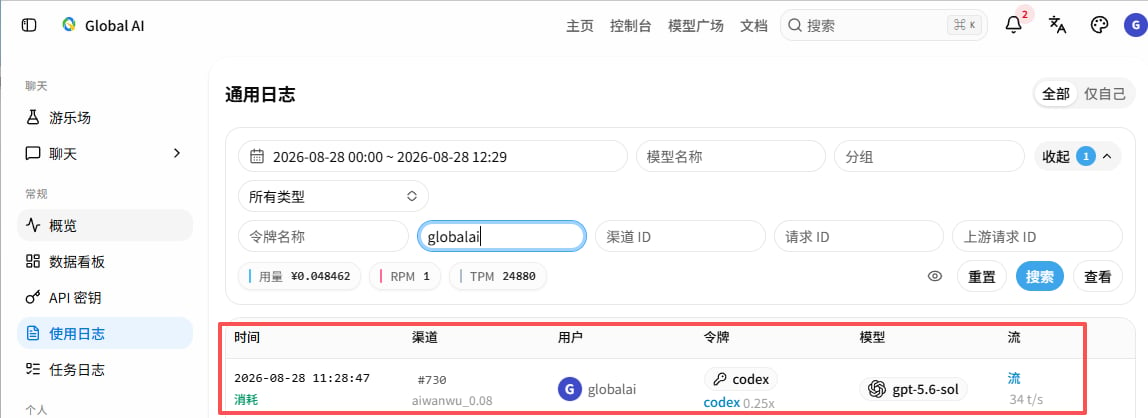
Option 2: Manual setup
1
Install ChatGPT(Codex)
Download and install the desktop client from openai.com/codex.
2
Edit config.toml
Locate the config file for your OS:
- Windows:
C:\Users\<your username>\.codex\config.toml - macOS / Linux:
~/.codex/config.toml
config.toml
3
Edit auth.json
Locate the file for your OS (create it if missing):
- Windows:
C:\Users\<your username>\.codex\auth.json - macOS / Linux:
~/.codex/auth.json
auth.json
4
Restart and verify
Restart the ChatGPT(Codex) client, send a test message, and confirm the call in Usage logs.
Use inside VS Code
After either method is in place, install the official Codex extension from the VS Code marketplace to call Global AI directly from the IDE.Troubleshooting
Authentication error on call
Authentication error on call
Confirm the token is in the codex group, not another vendor group. Edit the token at globalai.vip/keys to check its group.
Model not found
Model not found
Model IDs change over time. Use the current Codex model IDs shown on globalai.vip/pricing.