> ## Documentation Index
> Fetch the complete documentation index at: https://docs.globalai.vip/llms.txt
> Use this file to discover all available pages before exploring further.
# ChatGPT(Codex) with Global AI: CC Switch or Manual Setup
> Connect ChatGPT(Codex) to Global AI using CC Switch for one-click setup or by manually editing config.toml and auth.json.
ChatGPT(Codex) is OpenAI's official command-line and desktop client. This page shows how to point it at Global AI instead of the official API. Desktop download: [openai.com/codex](https://openai.com/codex/).
Codex requires a token in the **Codex group**. Tokens for other model vendors will not work. Choose the codex group when you create the key at [globalai.vip/keys](https://globalai.vip/keys).
Pick one of the two methods below: **CC Switch** is best on the desktop with a GUI. **Manual setup** suits users comfortable with command line and config files.
## Option 1: CC Switch (recommended)
CC Switch is a desktop tool for switching providers with one click. It supports both Claude Code and ChatGPT(Codex). Download: [github.com/farion1231/cc-switch/releases](https://github.com/farion1231/cc-switch/releases).
Global AI supports one-click import into CC Switch. Steps:
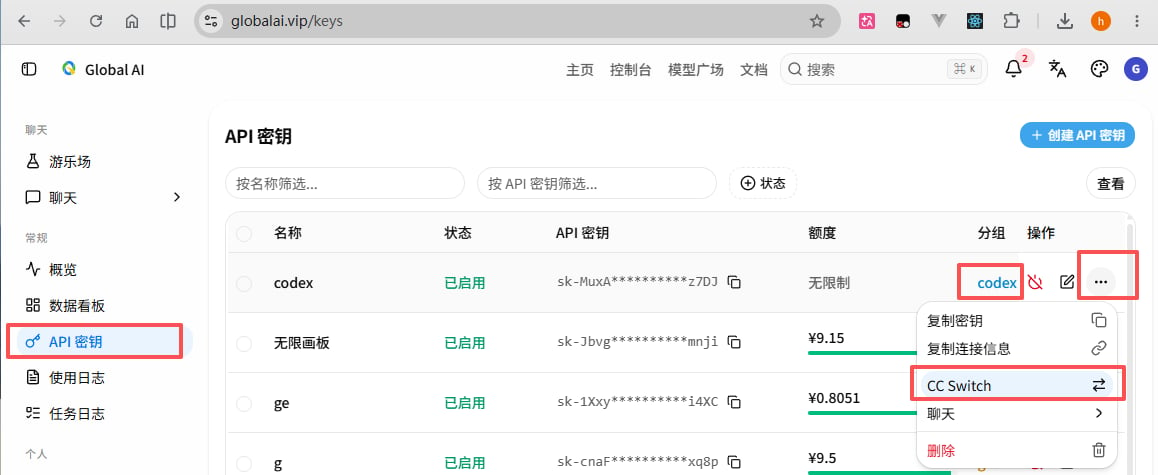
Sign in to Global AI, open **API keys** in the left menu (or go directly to [globalai.vip/keys](https://globalai.vip/keys)), and create a key in the **codex group**.
On the row of the new key, click the **...** button on the far right and choose **CC Switch** from the dropdown.
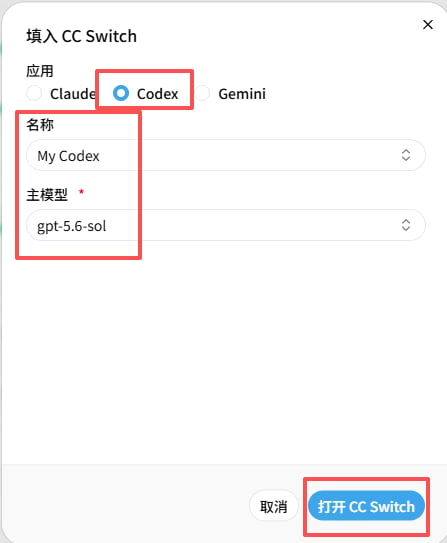
 In the dialog:
* **App**: choose `Codex`
* **Name**: customize as needed
* **Main model**: choose `gpt-5.6-sol`
Confirm and click **Open CC Switch** at the bottom.
In the dialog:
* **App**: choose `Codex`
* **Name**: customize as needed
* **Main model**: choose `gpt-5.6-sol`
Confirm and click **Open CC Switch** at the bottom.
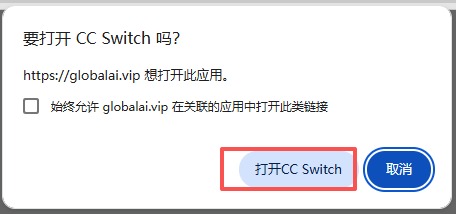
 Confirm in the browser prompt to open the CC Switch application.
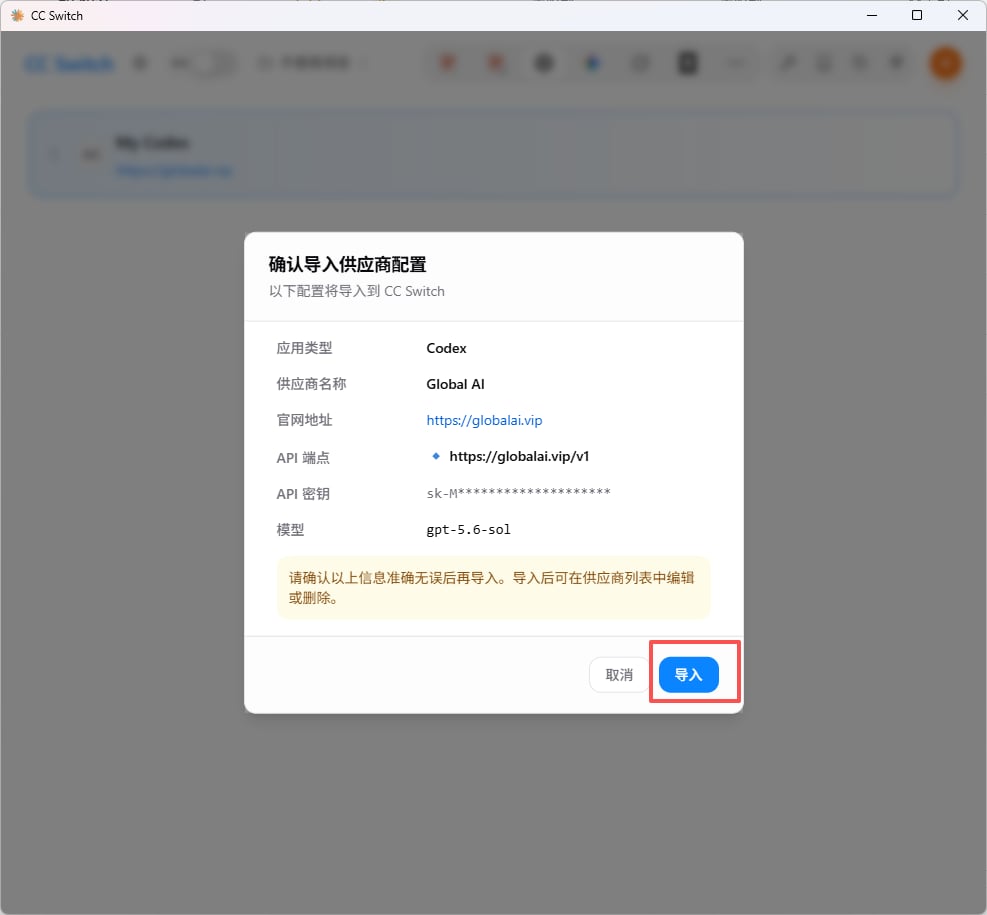
 In CC Switch, click **Import** and wait for the success message.
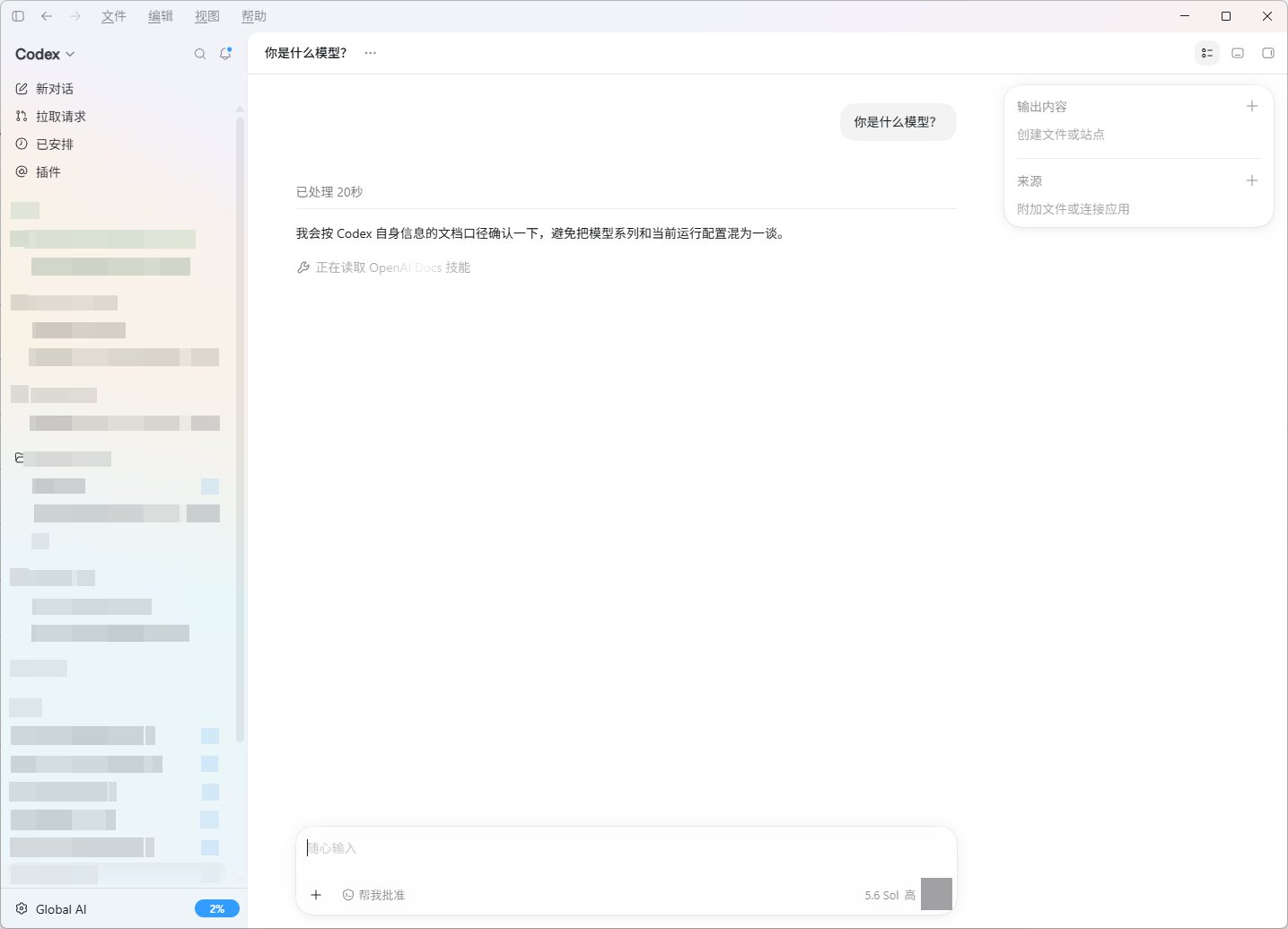
 Open the ChatGPT(Codex) client and send a test message.
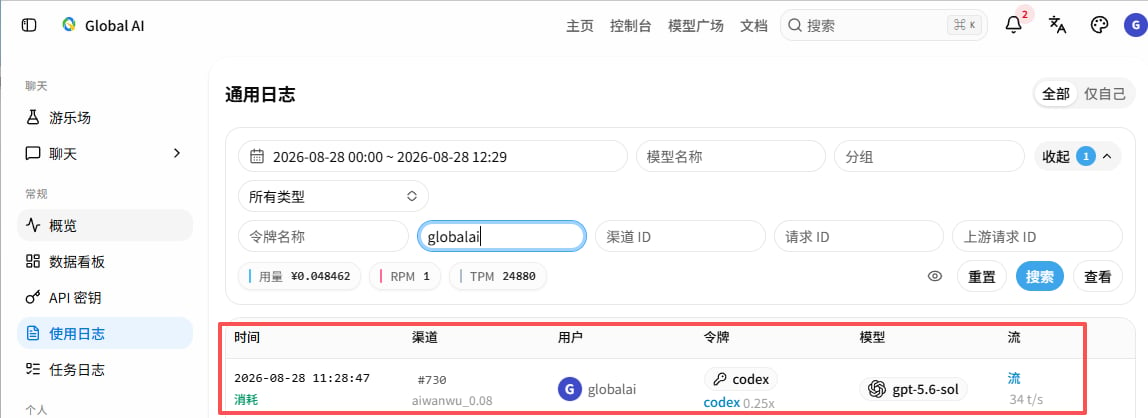
 Open [Usage logs](https://globalai.vip/usage-logs/common). If a call appears at the same time as your test, the integration works.
 ## Option 2: Manual setup
Download and install the desktop client from [openai.com/codex](https://openai.com/codex/).
Locate the config file for your OS:
* **Windows**: `C:\Users\\.codex\config.toml`
* **macOS / Linux**: `~/.codex/config.toml`
Write:
```toml config.toml icon=file-code theme={null}
model_provider = "globalai"
model = "gpt-5.6-sol"
model_reasoning_effort = "high"
disable_response_storage = true
[model_providers.globalai]
name = "globalai"
base_url = "https://globalai.vip/v1"
wire_api = "responses"
requires_openai_auth = true
```
Locate the file for your OS (create it if missing):
* **Windows**: `C:\Users\\.codex\auth.json`
* **macOS / Linux**: `~/.codex/auth.json`
Write your codex-group key:
```json auth.json icon=file-code theme={null}
{
"OPENAI_API_KEY": "replace with your codex-group API key"
}
```
Restart the ChatGPT(Codex) client, send a test message, and confirm the call in [Usage logs](https://globalai.vip/usage-logs/common).
## Use inside VS Code
After either method is in place, install the official Codex extension from the VS Code marketplace to call Global AI directly from the IDE.
## Troubleshooting
Confirm the token is in the **codex group**, not another vendor group. Edit the token at [globalai.vip/keys](https://globalai.vip/keys) to check its group.
Model IDs change over time. Use the current Codex model IDs shown on [globalai.vip/pricing](https://globalai.vip/pricing).
## References
* [ChatGPT(Codex) official page](https://openai.com/codex/)
* [Global AI pricing](https://globalai.vip/pricing)
## Related topics
- [Claude Code with Global AI: CC Switch or Manual Setup](/en/clients/claude-code.md)
- [Global AI Client Integrations: Parameters and Selection](/en/clients/overview.md)
- [ChatWise Setup: Unified Multi-Provider Access via Global AI](/en/clients/chatwise.md)
- [ChatBox with Global AI: Desktop and Mobile Setup](/en/clients/chatbox.md)
- [Cherry Studio with Global AI: Claude, GPT, Gemini Setup](/en/clients/cherry-studio.md)
## Option 2: Manual setup
Download and install the desktop client from [openai.com/codex](https://openai.com/codex/).
Locate the config file for your OS:
* **Windows**: `C:\Users\\.codex\config.toml`
* **macOS / Linux**: `~/.codex/config.toml`
Write:
```toml config.toml icon=file-code theme={null}
model_provider = "globalai"
model = "gpt-5.6-sol"
model_reasoning_effort = "high"
disable_response_storage = true
[model_providers.globalai]
name = "globalai"
base_url = "https://globalai.vip/v1"
wire_api = "responses"
requires_openai_auth = true
```
Locate the file for your OS (create it if missing):
* **Windows**: `C:\Users\\.codex\auth.json`
* **macOS / Linux**: `~/.codex/auth.json`
Write your codex-group key:
```json auth.json icon=file-code theme={null}
{
"OPENAI_API_KEY": "replace with your codex-group API key"
}
```
Restart the ChatGPT(Codex) client, send a test message, and confirm the call in [Usage logs](https://globalai.vip/usage-logs/common).
## Use inside VS Code
After either method is in place, install the official Codex extension from the VS Code marketplace to call Global AI directly from the IDE.
## Troubleshooting
Confirm the token is in the **codex group**, not another vendor group. Edit the token at [globalai.vip/keys](https://globalai.vip/keys) to check its group.
Model IDs change over time. Use the current Codex model IDs shown on [globalai.vip/pricing](https://globalai.vip/pricing).
## References
* [ChatGPT(Codex) official page](https://openai.com/codex/)
* [Global AI pricing](https://globalai.vip/pricing)
## Related topics
- [Claude Code with Global AI: CC Switch or Manual Setup](/en/clients/claude-code.md)
- [Global AI Client Integrations: Parameters and Selection](/en/clients/overview.md)
- [ChatWise Setup: Unified Multi-Provider Access via Global AI](/en/clients/chatwise.md)
- [ChatBox with Global AI: Desktop and Mobile Setup](/en/clients/chatbox.md)
- [Cherry Studio with Global AI: Claude, GPT, Gemini Setup](/en/clients/cherry-studio.md)